Every live stream you send to YouTube from an encoder needs two things: a server address and a stream key. The server address is the YouTube RTMP URL, and it is the same for every channel in the world. The stream key is private and tells YouTube which channel the video belongs to. This guide lists every YouTube ingest URL, shows where each one sits in YouTube Studio, and covers the mistakes that stop a stream from connecting.
YouTube RTMP and RTMPS server URLs
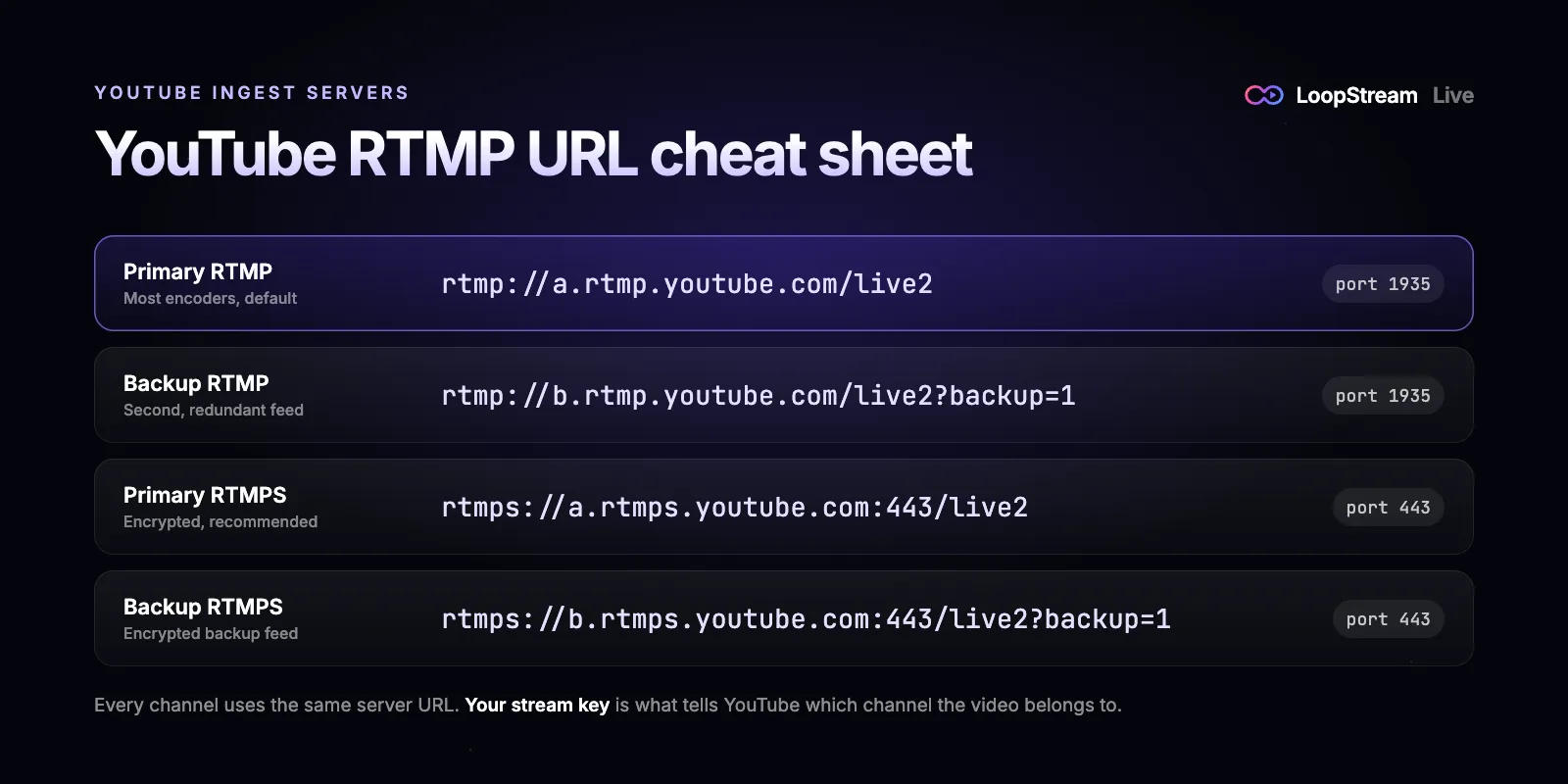
YouTube accepts live video on four addresses. Most people only ever need the first one. The others are for an encrypted connection or for a second, backup feed.
| Use | Server URL | Port |
|---|---|---|
| Primary RTMP | rtmp://a.rtmp.youtube.com/live2 | 1935 |
| Backup RTMP | rtmp://b.rtmp.youtube.com/live2?backup=1 | 1935 |
| Primary RTMPS (encrypted) | rtmps://a.rtmps.youtube.com:443/live2 | 443 |
| Backup RTMPS (encrypted) | rtmps://b.rtmps.youtube.com:443/live2?backup=1 | 443 |
What is a YouTube RTMP URL?
RTMP (Real-Time Messaging Protocol) is the way encoders push live video to platforms like YouTube, Facebook and Twitch. The RTMP URL, which YouTube calls the Stream URL or server URL, is simply the address of YouTube's ingest servers. The /live2 at the end is the application on those servers that receives live video.
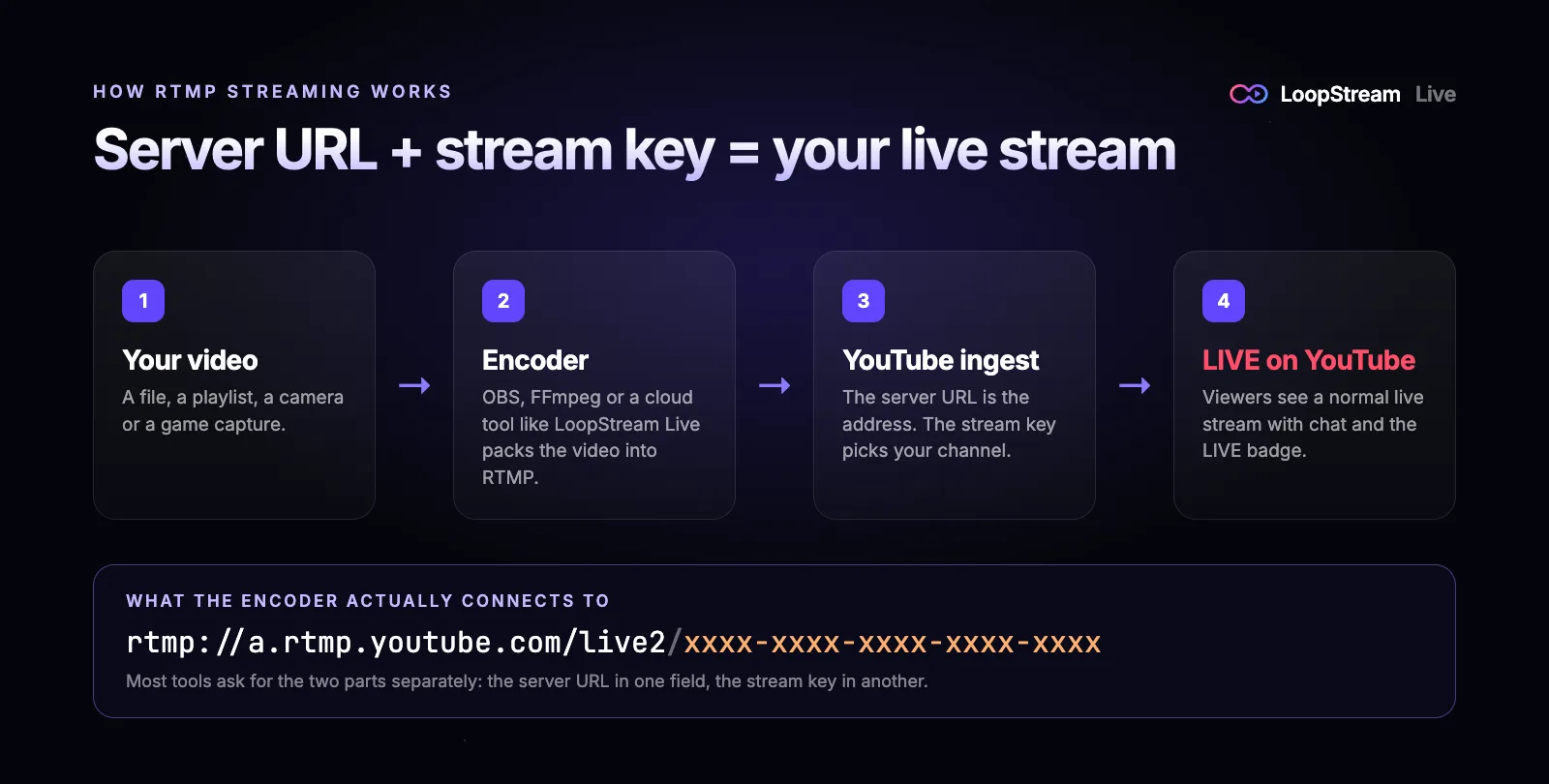
Your encoder joins the server URL and your stream key into one address behind the scenes: the server URL, a slash, then the key. That is why most apps ask for the two parts in separate fields. You never need a special RTMP URL for your channel, because the key already does that job.
How to find your RTMP URL in YouTube Studio
- 1
Open YouTube Studio
Go to studio.youtube.com on a computer and sign in to the channel you want to stream to.
- 2
Open the Live Control Room
Click Create in the top right, then Go live. If this is your first live stream, YouTube may ask you to verify your channel first, and streaming can take up to 24 hours to switch on.
- 3
Choose the Stream tab
On the left, pick Stream rather than Webcam. This is the page for encoders and streaming tools.
- 4
Copy the Stream URL
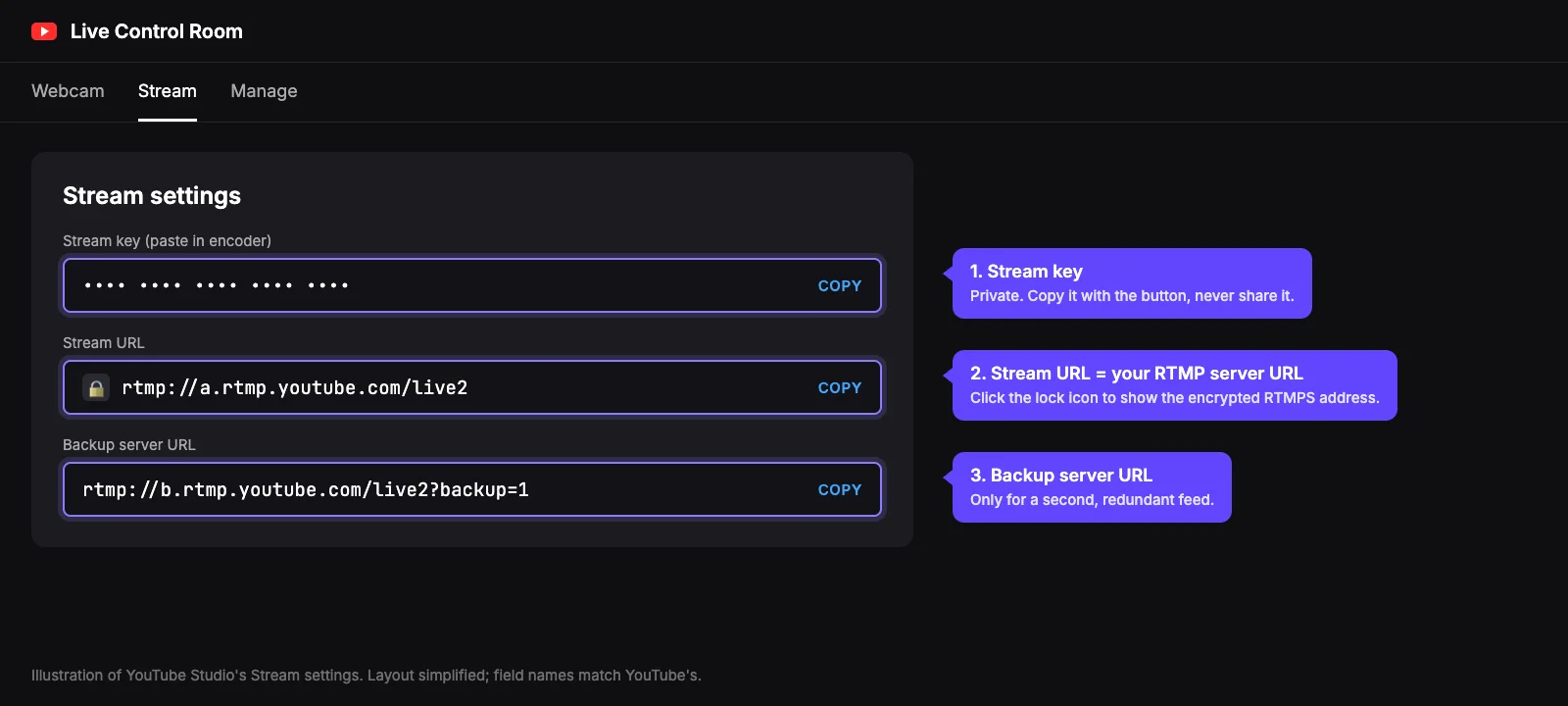
Under Stream settings you'll see Stream key, Stream URL and Backup server URL. Click Copy next to Stream URL. Click the lock icon in that field first if you want the encrypted RTMPS address instead.
- 5
Copy your stream key
Copy the Stream key with its button too. If you need help with this part, here's how to find your YouTube stream key on a phone or computer.
Getting the RTMP URL on a phone
The YouTube app doesn't show the RTMP URL, because it streams from your camera instead. On a phone, open studio.youtube.com in Chrome or Safari, switch the browser to its desktop site, and follow the same steps. Or skip the copying: the server URL is the same for everyone, so you can type rtmp://a.rtmp.youtube.com/live2 straight into your app and only fetch the stream key.
RTMP vs RTMPS: which should you use?
RTMPS is RTMP sent inside an encrypted TLS connection, the same encryption that protects websites. YouTube recommends it, and Google's developer documentation notes that RTMPS connections go to port 443 on the ingest server.
- Use RTMPS when your encoder supports it. Your stream key is encrypted on the way to YouTube instead of being sent in plain text.
- RTMPS uses port 443, the same port as normal web traffic, so it gets through office, school and hotel firewalls that block port 1935.
- Use plain RTMP if your encoder or a hardware device doesn't support RTMPS. The video quality is exactly the same; only the transport differs.
- If an RTMPS stream fails with an SSL or connection error, check that the URL includes :443 and that your encoder is up to date.
What is the YouTube backup server URL for?
The backup server URL, rtmp://b.rtmp.youtube.com/live2?backup=1, lets you send a second copy of the same stream at the same time, usually from a second encoder or a second internet connection. Both feeds use the same stream key. If the primary feed drops, YouTube switches viewers to the backup without ending the broadcast.
For a single encoder you don't need it. Stick with the primary URL unless you are really running two separate feeds.
Where to paste the URL: OBS, FFmpeg and cloud tools
- OBS Studio: open Settings, then Stream. Pick YouTube - RTMPS as the service and paste your stream key, or choose Custom, put the server URL in the Server field and the key in the Stream Key field.
- vMix, Streamlabs and hardware encoders: look for a Custom RTMP or Custom server option, then use the same two fields.
- FFmpeg: put the server URL and the key together at the end of the command, joined with a slash, as in the example below.
- LoopStream Live: you don't need the URL at all. Pick YouTube, paste your stream key, and the stream loop app fills in YouTube's server for you.
ffmpeg -re -stream_loop -1 -i video.mp4 \
  -c:v libx264 -preset veryfast -b:v 4500k -maxrate 4500k -bufsize 9000k \
  -pix_fmt yuv420p -g 60 -c:a aac -b:a 128k -ar 44100 \
  -f flv "rtmp://a.rtmp.youtube.com/live2/YOUR-STREAM-KEY"
This command loops video.mp4 forever and sends it to YouTube as a 1080p-ready H.264 stream with a keyframe every two seconds at 30 frames per second. It only runs while your computer stays on, which is the main reason people move a 24/7 stream to a cloud service. If that's your plan, read how to loop a video on YouTube Live next.
YouTube RTMP URL not working? Check these first
- The key was pasted into the URL field, or added to the URL and to the key field at the same time. Keep the URL and the key in their own fields.
- The URL is missing /live2, or has extra spaces at the start or end. Use the Copy button instead of selecting the text by hand.
- rtmps:// was used with port 1935, or rtmp:// with port 443. RTMPS goes with 443, plain RTMP with 1935.
- Your network blocks port 1935. Switch to the RTMPS address on port 443.
- Live streaming isn't switched on yet, or is still inside its first 24 hours. The Stream tab won't work until it is.
- The stream key was reset, so the one saved in your encoder is out of date. Copy the current key again.
- Another stream is already using the same key. Each key carries one stream at a time, so create a second key for a second stream.
Settings YouTube expects from your encoder
The right URL gets you connected; the right settings keep the stream healthy. YouTube's encoder guidelines ask for H.264 video with a keyframe every two seconds (never longer than four), and AAC or MP3 audio at 128 kbps stereo, at 44.1 or 48 kHz. Use a constant bitrate that suits your resolution and upload speed, then check the stream health panel in YouTube Studio once you're live. It should read Excellent or Good.