You tap Create in the YouTube app, choose Go live, and YouTube tells you your channel isn't eligible yet. That message is about one specific way of going live: streaming your phone's camera through the YouTube app. YouTube has other ways to go live, and they don't ask for any subscribers at all. This guide explains every YouTube live streaming requirement, why the mobile limit exists, and how to go live on YouTube with 0 subscribers from a computer or straight from your phone.
YouTube live streaming requirements: mobile vs webcam vs stream key
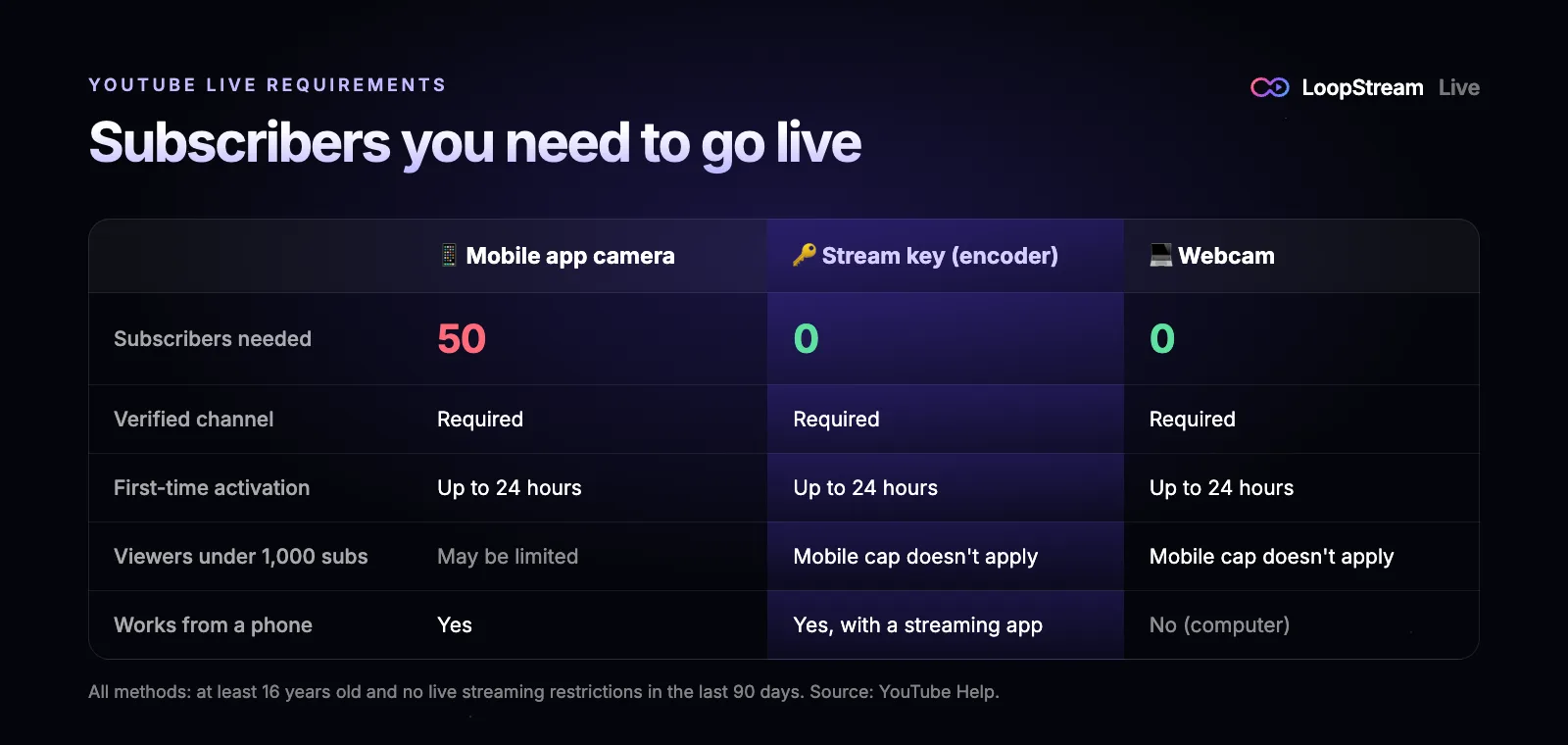
YouTube offers several ways to go live, and the subscriber rule belongs to only one of them. According to YouTube Help, every method needs a verified channel and no live streaming restrictions in the last 90 days, and you must be at least 16 years old. Only mobile live streaming adds a subscriber minimum.
| Requirement | Mobile app camera | Webcam | Stream key (encoder) |
|---|---|---|---|
| Subscribers needed | At least 50 | None | None |
| Verified channel | Required | Required | Required |
| First-time activation | Up to 24 hours | Up to 24 hours | Up to 24 hours |
| Viewers under 1,000 subscribers | May be limited | Mobile cap doesn't apply | Mobile cap doesn't apply |
| Works from a phone | Yes | No, needs a computer | Yes, with a streaming app |
Why do you need 50 subscribers to go live on YouTube mobile?
Mobile live streaming is the easiest way to go live on YouTube: one tap and your camera is on air. That also makes it the easiest to misuse, so YouTube asks for a small audience first as a basic trust signal. Webcam and encoder streaming take more setup (a computer, streaming software or a stream key), so YouTube relies on channel verification and its community guidelines there instead of a subscriber count. In practice that gives every new channel a way to go live from day one.
How to go live on YouTube with 0 subscribers, step by step
- 1
Verify your channel
Go to youtube.com/verify and confirm your channel with a phone number. Live streaming stays locked until this is done.
- 2
Turn on live streaming
Open YouTube Studio on a computer, or studio.youtube.com in your phone's browser, then click Create and Go live. The first time, YouTube switches live streaming on for your channel, which can take up to 24 hours.
- 3
Choose the Stream tab
In the Live Control Room, pick Stream instead of Webcam. This is the stream key route, and it has no subscriber requirement.
- 4
Copy your stream key
Under Stream settings, click Copy next to the stream key. Here's how to find your YouTube stream key on a phone or computer if you can't spot it.
- 5
Connect a streaming tool and go live
Paste the key into OBS Studio on a computer, a camera app that supports a custom RTMP server, or a cloud tool like LoopStream Live on your phone, then start the stream. It shows up in YouTube Studio within a few seconds.
How to live stream on YouTube without 50 subscribers on mobile
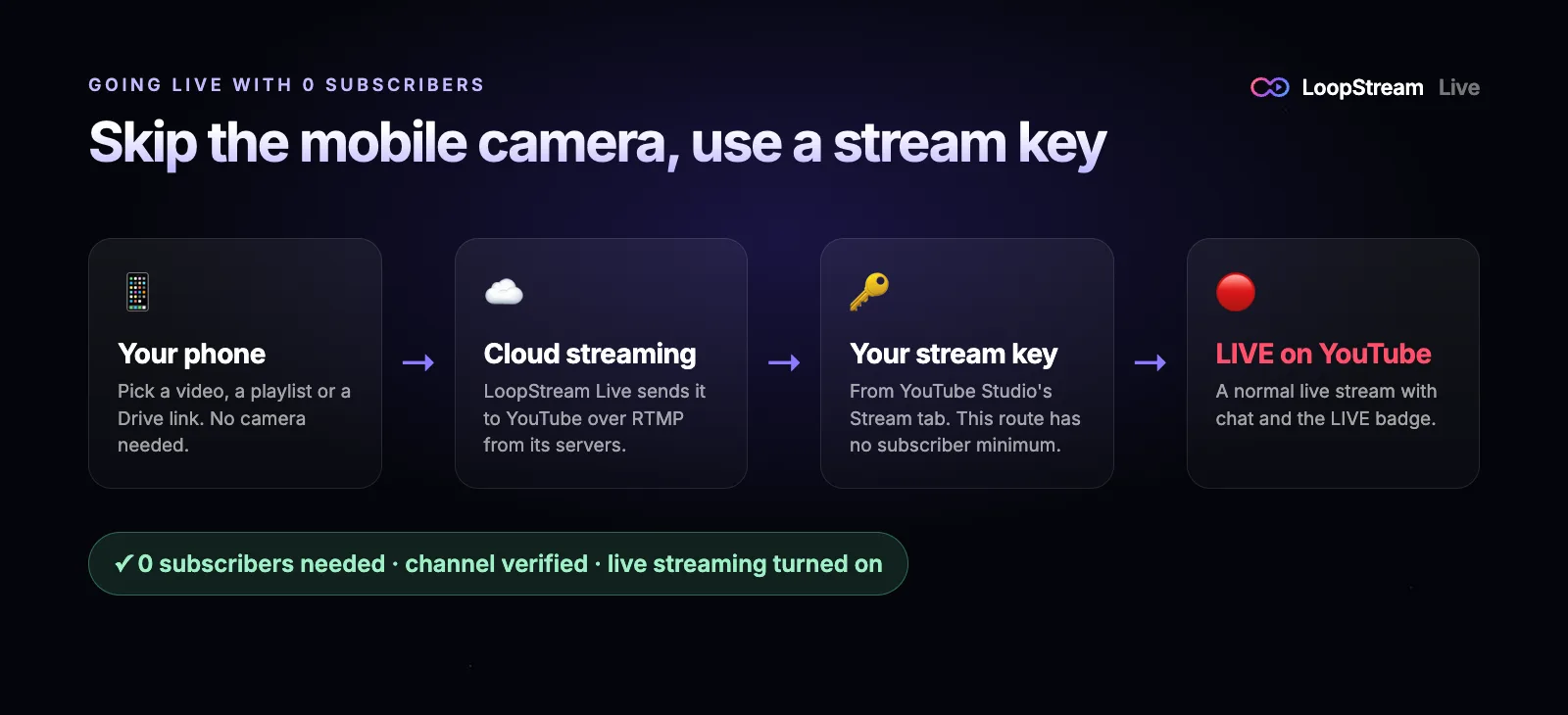
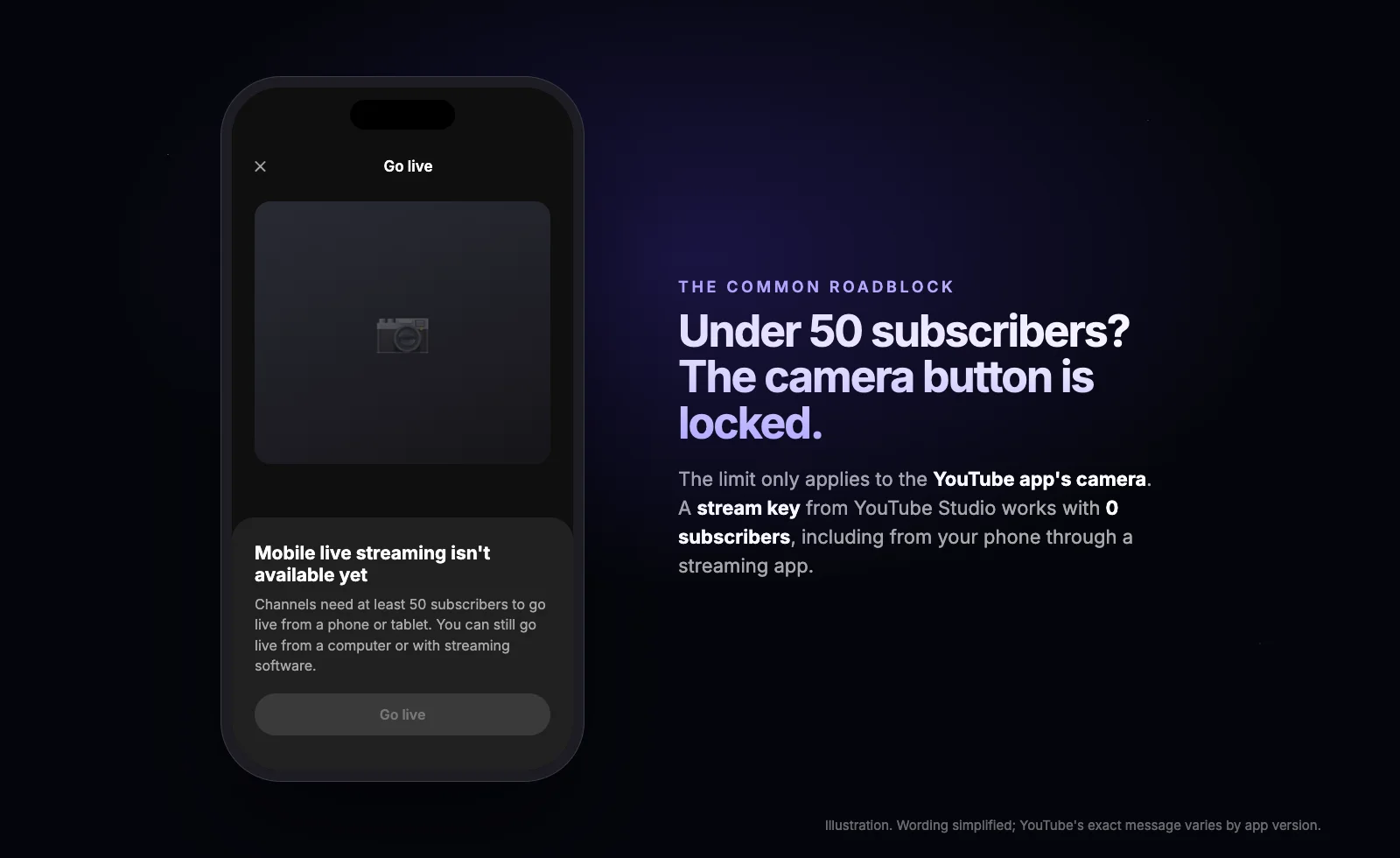
You can still go live from an Android phone or iPhone. The trick is to stream through your stream key instead of the YouTube app's camera. There are two ways to do it.
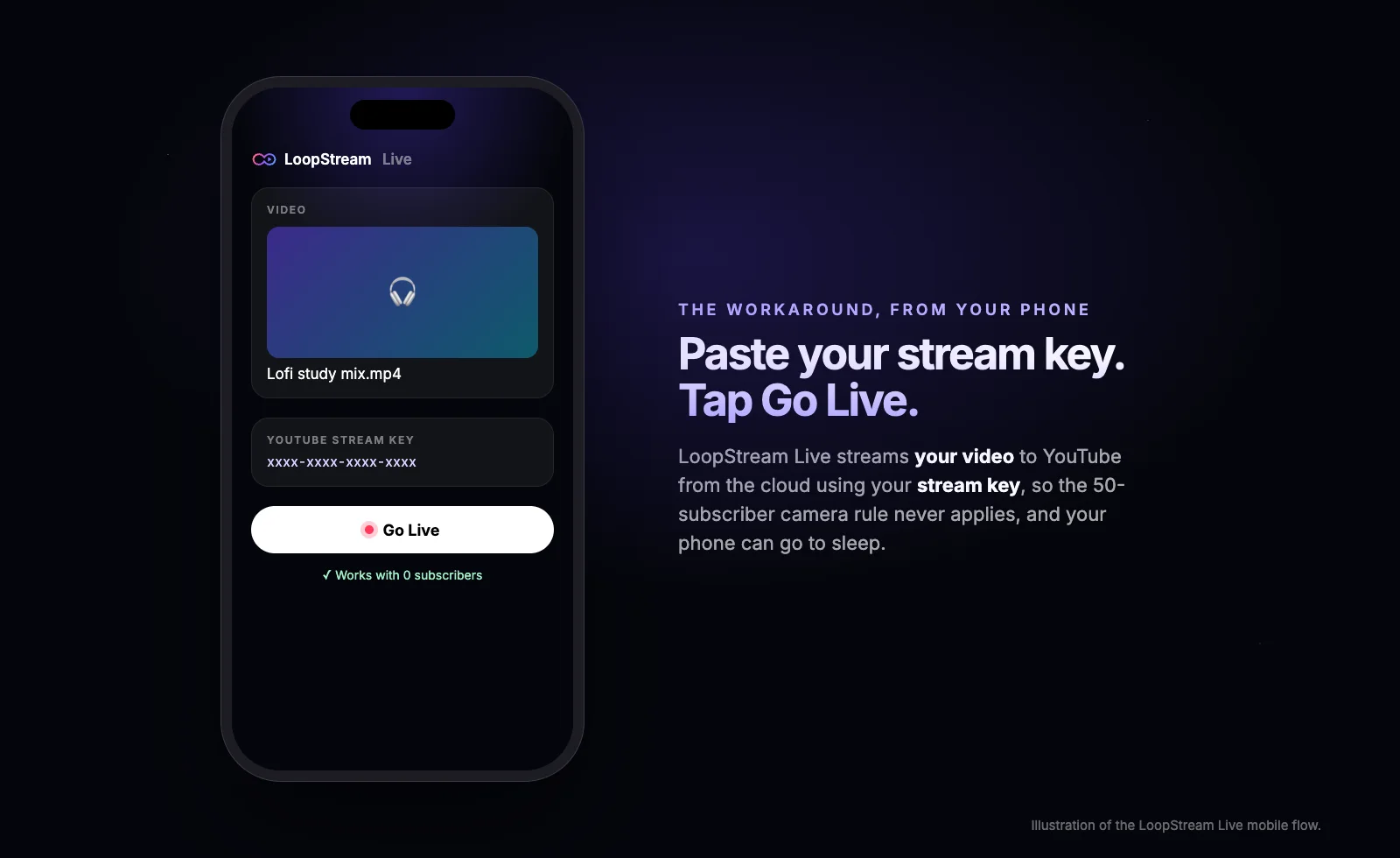
- Stream a video from the cloud. With LoopStream Live you pick a video, a playlist or a Google Drive link, paste your stream key and tap Go Live. The stream runs from our servers, so it keeps going after you lock your phone. This is how lofi, music and replay channels go live from a phone with no subscribers.
- Stream your camera through an RTMP app. Camera streaming apps such as Prism Live Studio let you enter a custom RTMP server and a stream key. Use YouTube's server address, the YouTube RTMP URL rtmp://a.rtmp.youtube.com/live2, plus your key. Your phone has to stay on and connected for the whole stream.
How to go live on YouTube without subscribers on a computer
On a computer you have two free options. For a quick camera stream, open the Live Control Room and choose Webcam: no software and no subscribers needed. For gameplay, overlays or several cameras, install OBS Studio, choose YouTube as the service, connect your account or paste your stream key, and click Start Streaming.
Have 50 subscribers but still can't go live? Check these
- Your channel isn't verified yet. Complete phone verification at youtube.com/verify first.
- Live streaming was only just turned on. The first activation can take up to 24 hours, and the Go live button stays greyed out until it finishes.
- Your channel had a live streaming restriction in the last 90 days, for example after a Community Guidelines strike. YouTube Studio shows this on the Go live page.
- You're under 16. YouTube requires live streamers to be at least 16, and anyone younger needs an adult visibly present in the stream.
- Your app or phone is out of date. Mobile live needs Android 8.0 or later, or an up-to-date iPhone, and the latest YouTube app.
- You're signed in to a different Google account or Brand Account than the channel you want to stream on. Check the account switcher in YouTube Studio.
How to go live on YouTube without showing your face
A live stream doesn't have to be a camera. Many popular 24/7 streams on YouTube are pre-recorded videos played on a loop: lofi music, rain sounds, study timers, nature cams and game replays. You record or collect the video once, and the stream plays it around the clock with the LIVE badge and live chat. Our guide on how to loop a video on YouTube Live walks through it, and a stream loop app like LoopStream Live runs it from the cloud.
How to grow from 0 subscribers with live streams
- Stream on a schedule, at the same time each week, so new viewers know when to come back.
- Run a 24/7 stream next to your normal uploads. A stream that is always on shows up in the Live tab and in search at any hour.
- Put the topic first in the title, for example "Lofi beats to study to, 24/7", and use a clear thumbnail.
- Talk to chat, or pin a comment, so the first viewers feel there is someone behind the channel.
- Cut the best moments into Shorts that link back to the live stream.