Scheduling a live stream on YouTube does two jobs. It announces the stream ahead of time, so your subscribers see it under Upcoming and can set a reminder. And it gives you a fixed watch page link you can share before you go live. What it doesn't do is play anything: when the time comes, YouTube waits for video to arrive on your stream key. This guide shows how to schedule a YouTube live stream on a computer and on a phone, and how to make it actually start on time even if your computer is off.
What happens when you schedule a live stream on YouTube?
- YouTube creates a watch page for the stream right away, with its own link, title and thumbnail.
- The stream may show up in your subscribers' feeds as Upcoming, and viewers can tap Notify me to get an alert when it starts.
- Viewers who watch your Shorts can also opt in to a notification when a scheduled stream is starting within 24 hours.
- Nothing goes live until YouTube receives video. You still need an encoder, an app or a cloud tool sending your stream at the scheduled time.
How to schedule a YouTube live stream on PC
On a computer you schedule from the Live Control Room in YouTube Studio. These steps are for streaming with a stream key (an encoder such as OBS, or a cloud tool), which is the method that lets a stream start without you sitting at the camera.
- 1
Open the Live Control Room
Go to studio.youtube.com, click Create in the top right, then Go live. The first time, YouTube may take up to 24 hours to switch live streaming on for your channel.
- 2
Click Manage, then Schedule stream
Open the Manage tab and click Schedule stream. Choose Reuse settings to copy a stream you ran before (title, description and stream key included), or Create new to start fresh.
- 3
Add the details
Write a clear title, add a description and upload a thumbnail. This is exactly what subscribers see on the Upcoming card, so treat it like a video upload.
- 4
Pick the date and time
Under visibility, choose Public, Unlisted or Private, then set the date and time under Schedule for later. Check the time zone before you save, then click Done.
- 5
Check the stream key and auto-start
In the stream settings, note which stream key this stream uses and keep Enable auto-start switched on. With auto-start on, the stream goes live as soon as video arrives on that key, so nobody has to click Go live.
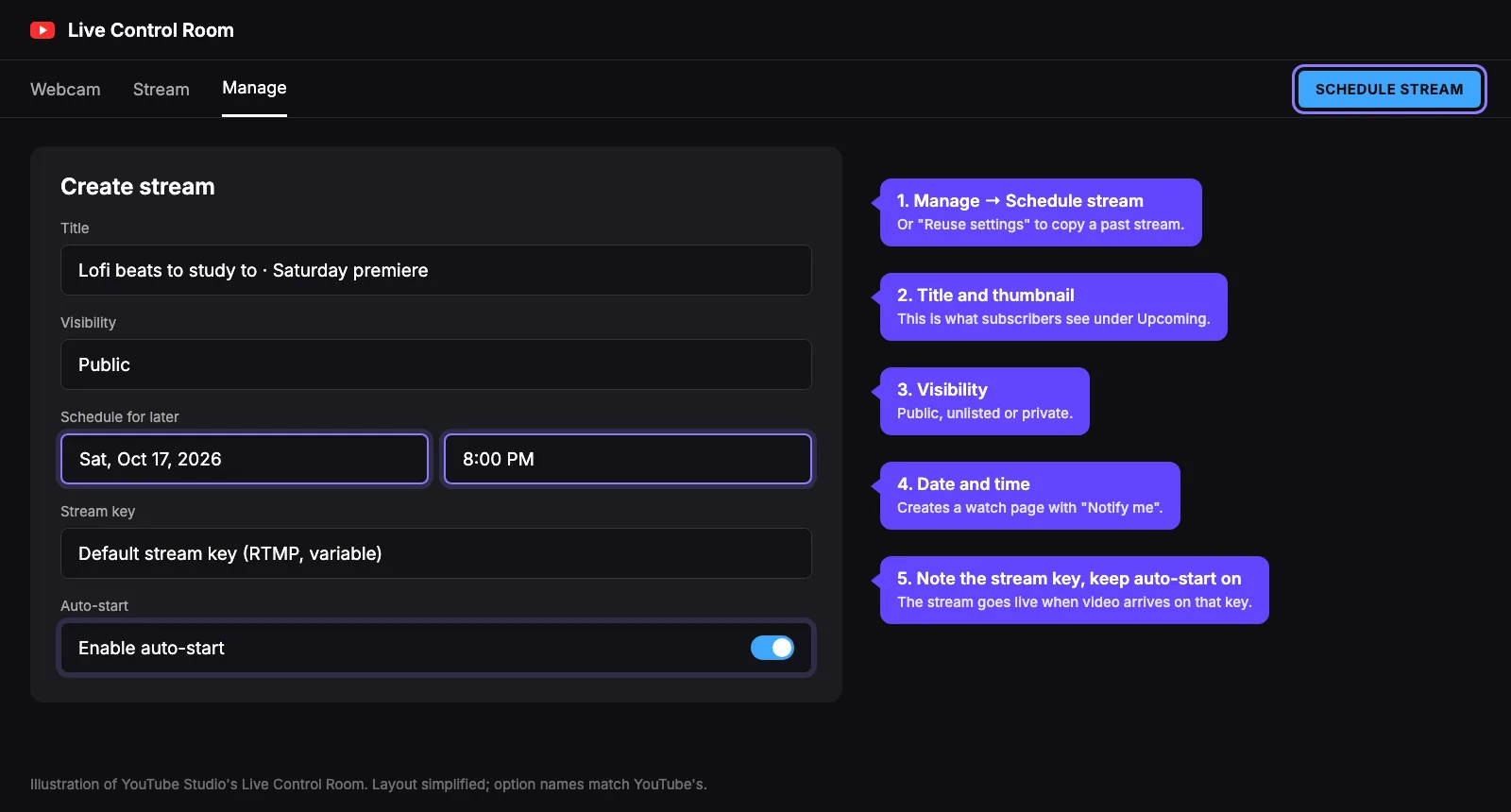
Your stream now sits in the Manage tab as an upcoming stream. Copy its watch page link from there to share it on social media or in a community post ahead of time.
How to schedule a live stream on YouTube mobile (Android and iPhone)
In the YouTube app you can schedule a stream from your phone's camera. Open the app, tap Create, then Go live. Before you start, tap the options to edit the stream details, turn on Schedule for later and pick the date and time, then fill in the title and visibility and save. The steps are the same on Android and iPhone.
A scheduled mobile stream still needs you there with the phone at the scheduled time, because the phone's camera is the source. If you want the stream to start while you're away, schedule a stream key stream instead and let a cloud tool send the video.
How to schedule a YouTube live stream with OBS
- 1
Schedule the stream in YouTube Studio
Follow the PC steps above. If you use your default stream key, OBS doesn't need any changes.
- 2
Connect OBS to the same key
In OBS, open Settings, then Stream, choose YouTube, and either connect your account or paste the stream key. Here's how to find your YouTube stream key, and the YouTube RTMP URL if your app asks for a server address.
- 3
Pick the scheduled stream (account connected)
If you connected your YouTube account, click Manage Broadcast in OBS and select the stream you scheduled, so OBS goes live on that watch page.
- 4
Start streaming at the scheduled time
Click Start Streaming when it's time. OBS and your computer have to stay on for the whole stream.
How to make a scheduled YouTube live stream start automatically
This is where most people get stuck. YouTube's schedule sets a time, but the stream only goes live when your encoder starts sending video, and an encoder on your computer only does that if the computer is on, awake and connected at that exact minute. For a 6 AM stream, or a stream every evening while you're at work, that's hard to rely on.
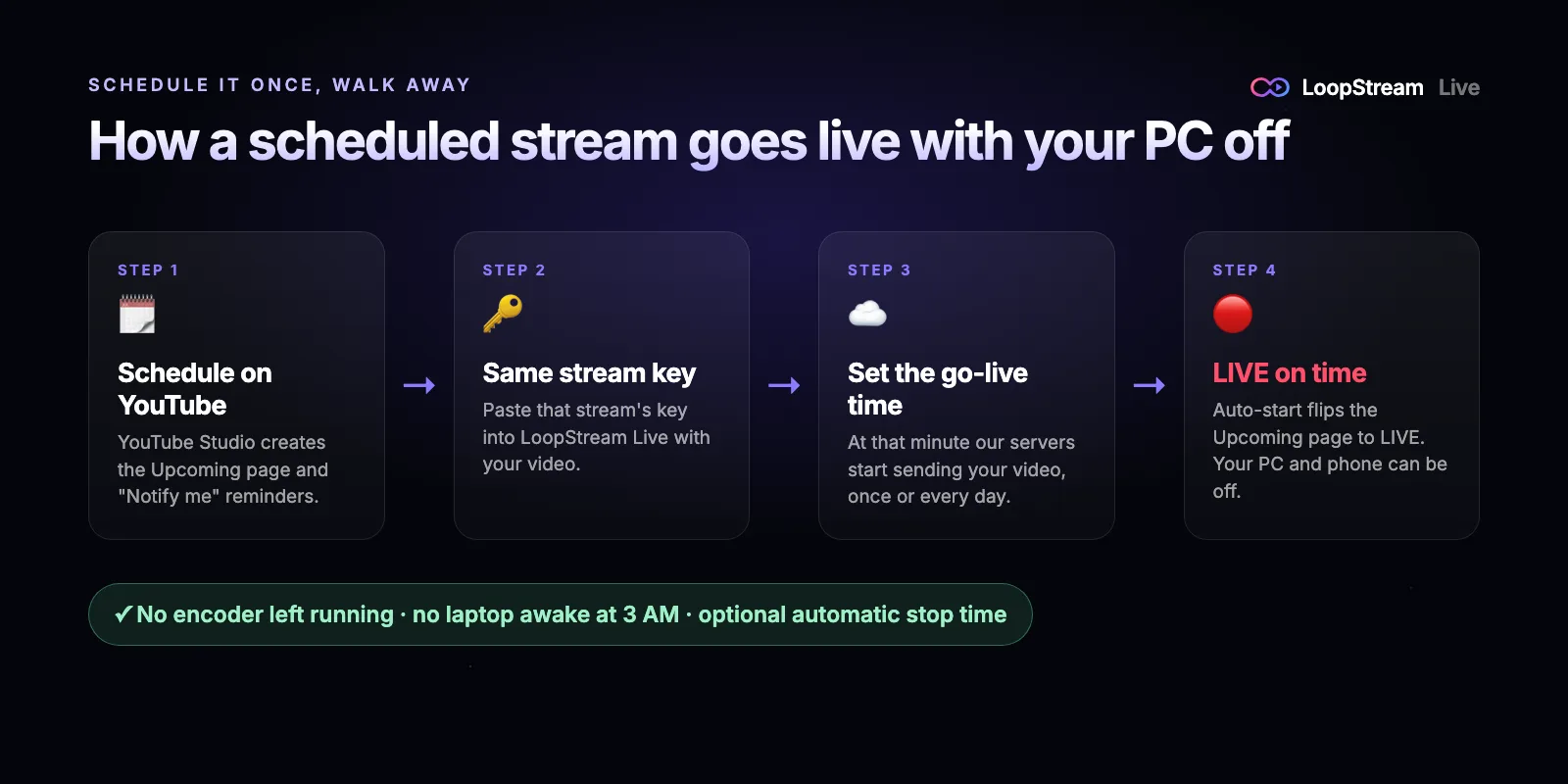
A cloud streaming tool fixes it by sending the video from a server instead of your computer. With LoopStream Live you add a pre-recorded video (or a playlist, or a Google Drive link), paste the same stream key your scheduled stream uses and set a go-live time. At that time our servers start sending the video, YouTube's auto-start sees it arrive, and your Upcoming page turns into a live stream. You can also set a stop time, and repeat the schedule every day.
- 1
Schedule the stream on YouTube
Create the scheduled stream in YouTube Studio as shown above, with auto-start on, and copy its stream key.
- 2
Add your video to LoopStream Live
Upload a video, pick several to play as a playlist, or paste a Google Drive or Dropbox link. Turn on loop if it should keep playing until the stop time.
- 3
Paste the stream key
Use the same stream key as the scheduled stream, so the video lands on that watch page.
- 4
Set the go-live time
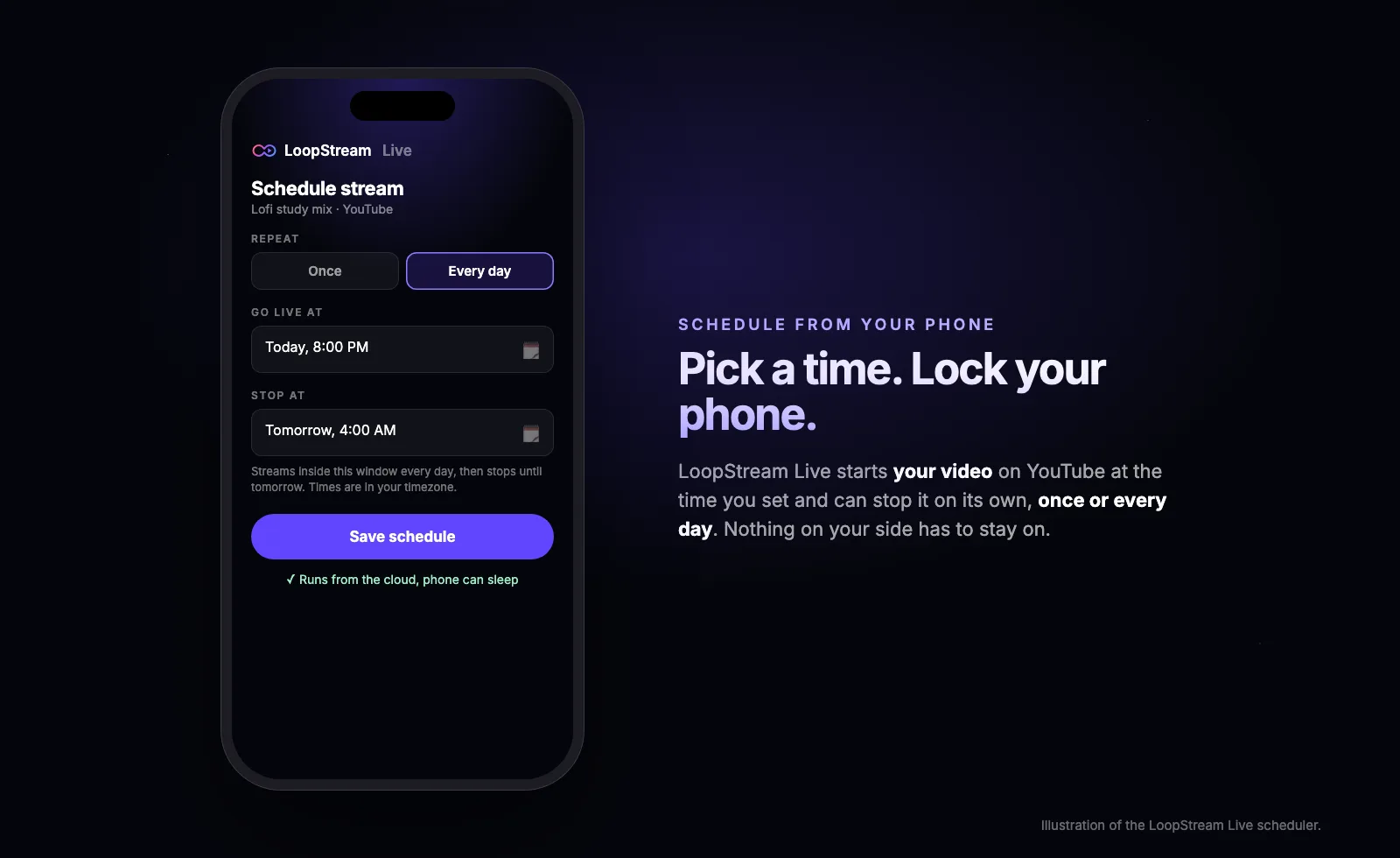
Tap the schedule icon on your stream, choose Once or Every day, set Go live at to the time you scheduled on YouTube and, if you like, a Stop at time. Times are in your own time zone.
- 5
Lock your phone
That's it. The stream starts and stops from the cloud, so your phone and computer can be off.
Which way to schedule a YouTube live stream should you use?
| Method | Who it suits | Starts by itself | Device on during stream |
|---|---|---|---|
| YouTube app (phone camera) | Live talk and Q&A from your phone | No, you go live from the app | Phone |
| YouTube Studio + OBS | Gaming, multi-camera and live shows | Only if OBS is already sending | Computer |
| YouTube Studio + LoopStream Live | Pre-recorded videos, music, replays and premieres | Yes, at the time you set | Nothing |
How to schedule a recurring or daily YouTube live stream
YouTube Studio schedules one stream at a time. For a daily or weekly show, open the Manage tab and use Reuse settings each time: it copies the title, description and stream key, so your encoder settings stay the same. Keep in mind YouTube's limits of 10 active streams per channel and 3 active streams per stream key.
If the same video or playlist should air every day, set Repeat to Every day in LoopStream Live with a go-live and stop time. The stream starts and stops in that window daily without you touching it, which suits a nightly lofi session, a morning prayer stream or a daily replay. To keep a channel on air around the clock instead, see how to loop a video on YouTube Live 24/7.
Tips to get more viewers on a scheduled live stream
- Schedule at least a day ahead, so the Upcoming card has time to reach your subscribers' feeds.
- Share the watch page link before the stream, in a community post, on social media or in your video descriptions.
- Use a custom thumbnail and a title that says what the stream is, for example "Lofi beats to study to, live tonight at 8 PM".
- Pick a time when your audience is online. YouTube Studio's Analytics shows when your viewers are on YouTube.
- Channels with 1,000 or more subscribers can add a trailer of 15 seconds to 3 minutes to a stream scheduled from the Manage tab.
- Keep the same day and time every week, so viewers learn when to come back.
Scheduled stream didn't go live? Check these
- No video arrived. The schedule doesn't stream anything by itself; your encoder or tool must be sending at that time.
- Auto-start is off. Then the stream waits in the Live Control Room until you click Go live.
- The video went to a different stream key. Make sure your encoder or LoopStream Live uses the key of the scheduled stream.
- The time zone was different. Check the time zone on both YouTube's schedule and your streaming tool.
- Your channel can't stream yet. New channels need a verified account and up to 24 hours after turning on live streaming, and mobile streams need 50 subscribers.