OBS Studio can play a video on repeat inside a scene, which is handy for a starting soon screen, a background clip behind a webcam, or a whole live stream made from one recorded video. The loop setting is one checkbox, but there are a few details that decide whether the loop looks smooth or jumps, whether the audio carries on, and whether the stream survives a whole night. This guide covers all of them.
How do you loop a single video in OBS?
- 1
Add a Media Source
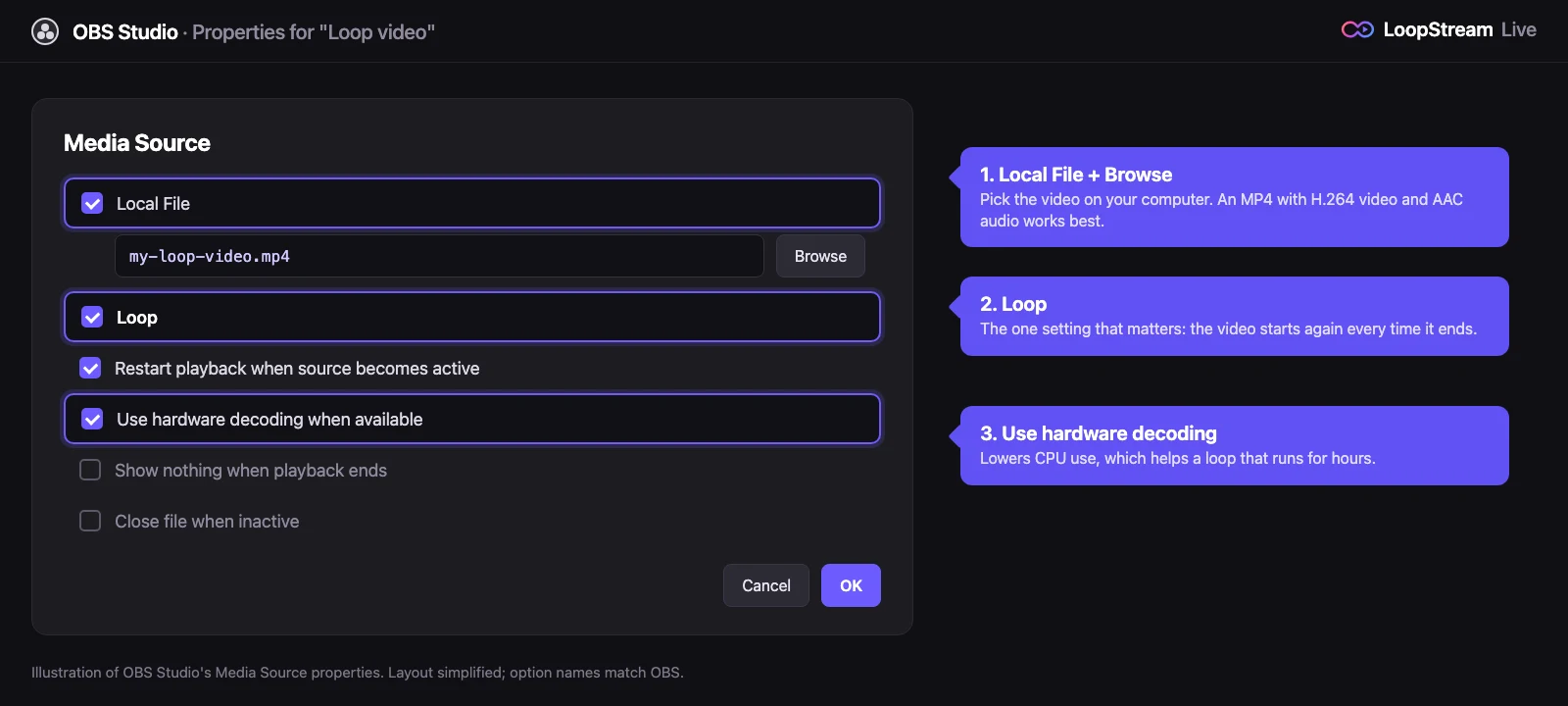
In the Sources box at the bottom of OBS, click the + button and choose Media Source. Give it a name, for example Loop video, and click OK.
- 2
Pick your video file
Make sure Local File is ticked, click Browse and choose your video. MP4 files with H.264 video and AAC audio work best.
- 3
Tick Loop
Tick the Loop checkbox. This is the setting that sends the video back to the start every time it ends.
- 4
Check the playback options
Leave Restart playback when source becomes active ticked if you want the video to start from the beginning each time you switch to the scene. Tick Use hardware decoding when available to lower CPU use on long loops.
- 5
Fit it to the canvas
Click OK, then right-click the source and choose Transform, then Fit to screen, so the video fills the whole scene.
How do you loop several videos (a playlist) in OBS?
A Media Source plays one file. To play a list of videos in order and start again from the first one at the end, use the VLC Video Source. It needs the free VLC media player installed on the same computer (the 64-bit version on Windows), after which VLC Video Source appears in the + menu. If it isn't there, restart OBS after installing VLC.
- 1
Add a VLC Video Source
Click + in Sources and choose VLC Video Source.
- 2
Build the playlist
Click the + next to Playlist and add each video file, or a whole folder. Drag the entries to set the order.
- 3
Tick Loop Playlist
Tick Loop Playlist so the list starts over after the last video. Tick Shuffle Playlist if you want a random order instead.
- 4
Choose the visibility behaviour
Set Visibility behavior to Always play even when not visible if the playlist should keep running when you switch scenes.
Why does the loop stutter, freeze or show a black frame?
OBS has to close the file and open it again at the loop point, so a short pause can appear there. How noticeable it is depends mostly on the file itself.
- Variable frame rate files, which is what most phones and screen recorders make, loop less cleanly. Convert the video to a constant frame rate (for example 30 fps) in HandBrake before adding it.
- Very long or very high bitrate files take longer to reopen. Export at the resolution you stream at, not higher.
- A black frame at the end is usually in the video itself. Trim the last frame off in your editor.
- Audio that cuts at the loop point usually means the audio track is shorter than the video. Export with audio that runs to the very end.
- If the pause still bothers you, make the file longer: join the clip to itself a few times in your editor, so OBS loops once an hour instead of every minute.
How do you loop only the music or audio in OBS?
Add the audio file as a Media Source in exactly the same way and tick Loop. MP3, WAV and M4A all work. For a music stream with a still picture, add an Image Source for the background and the looping audio as a Media Source above it. Check the Audio Mixer: the source should move the meter, and its level should sit around the yellow zone, not in the red.
How do you live stream a looped video from OBS?
- 1
Connect OBS to YouTube
Open Settings, then Stream. Choose YouTube, then Use Stream Key, and paste the key from YouTube Studio. Here's where to find your YouTube stream key.
- 2
Set the output for YouTube
In Settings, then Output, switch Output Mode to Advanced, set the keyframe interval to 2 seconds and pick a bitrate that matches your resolution, for example around 4,500 Kbps for 1080p at 30 fps.
- 3
Turn on automatic reconnect
In Settings, then Advanced, make sure Automatically Reconnect is ticked and raise Maximum Retries, so a short internet drop doesn't end the stream.
- 4
Start streaming
Click Start Streaming and check that the stream shows as live in YouTube Studio, with stream health Excellent or Good.
Can OBS loop a video 24/7?
It can, but only for as long as the computer running it stays on, awake and online. That is the weak point for a stream that should run for days.
- Turn off sleep and display sleep in your power settings. On a Mac, also stop the computer sleeping when the display is off.
- Pause or schedule system updates. A Windows update restart ends the stream with no warning.
- Use a wired connection rather than Wi-Fi, and keep the computer plugged in.
- Close heavy apps. Games and video editors can starve OBS and cause dropped frames.
- Expect a power cut or internet outage to end the stream. Automatic reconnect covers short drops, not long ones.
How do you keep a loop running with your computer off?
Move the loop off your computer. A cloud streaming service plays the video from its own servers and sends it to YouTube around the clock, so you can switch your computer off or run everything from a phone. With LoopStream Live you add the video (or a playlist, or a Google Drive link) in the app or on the web, paste your stream key and tap Go Live. Our guide on how to loop a video on YouTube Live compares the free and paid ways to do it, including FFmpeg on your own server.
| OBS on your computer | LoopStream Live | |
|---|---|---|
| Cost | Free | Free plan, paid passes for 24/7 |
| Computer must stay on | Yes, the whole time | No, runs in the cloud |
| Works from a phone | No | Yes, app and web |
| Scenes, webcam, overlays | Yes, full control | Video, or audio over an image; logo and ticker on Monthly and Yearly passes |
| Best for | Shows with a live host, testing a loop | A loop that runs for days on its own |
Frequently asked questions
How do I make a video loop in OBS?
Add it as a Media Source with Local File ticked, then tick Loop in the source's properties. The video starts again every time it ends.
How do I loop multiple videos in OBS?
Install VLC, then add a VLC Video Source in OBS, add your videos to its playlist and tick Loop Playlist. It plays them in order and starts over at the end.
Why is there a pause when my video loops in OBS?
OBS reopens the file at the loop point. A constant frame rate MP4 at your streaming resolution loops most smoothly, and a longer file means fewer loop points.
Why don't I see VLC Video Source in OBS?
OBS only shows it when VLC media player is installed on the same computer. On Windows, install the 64-bit version of VLC, then restart OBS.
Can I loop a YouTube video in OBS?
OBS loops files on your computer. You can only use video you own or have the rights to, so download your own video and add it as a Media Source.
Does OBS keep streaming when the computer sleeps?
No. When the computer sleeps, OBS stops sending video and the stream ends. Turn off sleep in your power settings, or use a cloud service that runs without your computer.
Can I loop a video in OBS without streaming?
Yes. The Loop setting works in the preview and in recordings too, for example for a background clip or a starting soon screen.