Going live doesn't have to mean being on camera at that moment. Church services, lessons, music mixes, product demos and replays of last week's event are often recorded first and then broadcast as a live stream, so viewers can watch together, chat and get the live notification. This guide covers the three ways to do a pre-recorded live stream on YouTube, which one works from a phone, and what YouTube allows.
What is a pre-recorded live stream?
It is a live broadcast whose picture comes from a video file instead of a camera. YouTube receives the video through your stream key exactly as it would from a live camera, so the stream gets the red LIVE badge, a live chat, a place in the Live tab and, if it's scheduled, an Upcoming page with Notify me reminders. The only difference is on your side: you press play on a recording instead of performing in real time.
- Viewers see a normal live stream with live chat, and can't tell where the picture comes from.
- You can reply in the chat while the video plays, because you're free during the broadcast.
- Mistakes are fixed before the stream, in the edit, not live in front of everyone.
- The same video can go out more than once, as a scheduled live stream or on a 24/7 loop.
Does YouTube allow pre-recorded live streams?
Yes. YouTube's live streaming works with any encoder, and an encoder can send a recorded file as easily as a camera feed. Many channels stream recorded content every day, from 24/7 music radios to scheduled church services. The usual rules still apply, the same as for any upload: stream video you made or have the rights to, follow the Community Guidelines, and don't present a recording in a misleading way. A title such as "Sunday service (recorded)" or "24/7 lofi radio" keeps it honest.
Three ways to air a recorded video on YouTube
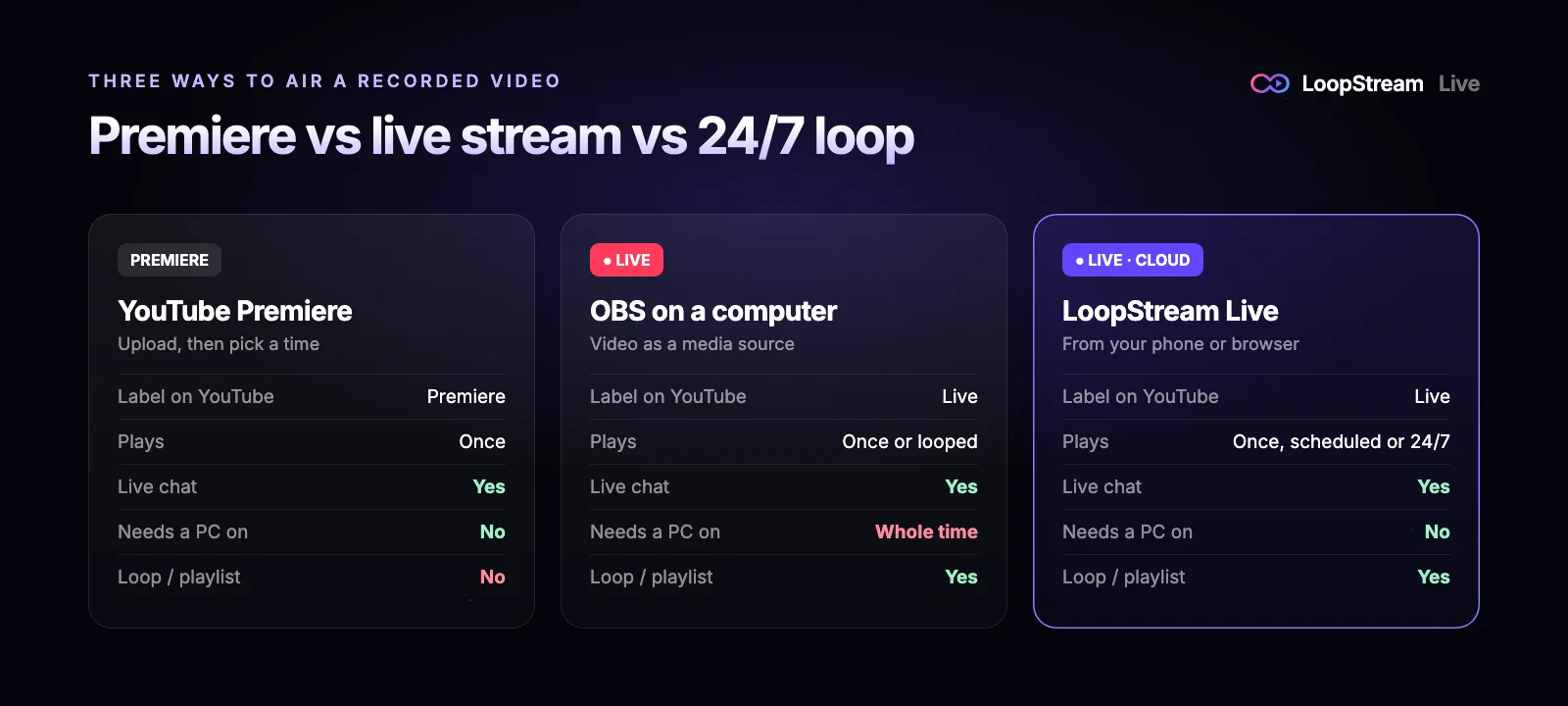
| Method | Shows on YouTube as | Works from a phone | Computer on during stream | Loop or playlist |
|---|---|---|---|---|
| YouTube Premiere | Premiere, plays once | Yes | No | No |
| OBS with the video as a source | Live | No | Yes, the whole time | Yes |
| Cloud tool (LoopStream Live) | Live | Yes | No | Yes |
Method 1: Premiere a video (shows once, as a Premiere)
A Premiere is YouTube's built-in way to show a finished video at a set time. You upload the video as usual, choose Premiere when you publish it, and pick a time or start it straight away. Viewers get a watch page with a countdown and live chat, then the video plays once from the start for everyone together.
- 1
Upload the video
In YouTube Studio click Create, then Upload videos, and fill in the title, description and thumbnail as usual.
- 2
Choose Premiere
On the Visibility step, choose Schedule and turn on Set as Premiere, or pick Set as instant Premiere to start it now.
- 3
Share the watch page
Before it starts, the Premiere has its own link. Share it so people can tap Notify me and join the countdown.
Premieres are simple and need nothing running on your side, but they have limits. The video plays once and then becomes a normal upload. It's labelled Premiere, not LIVE, so it doesn't show in the Live tab. And you can't loop it, chain several videos or keep it on air around the clock.
Method 2: Stream a recorded video with OBS (computer)
OBS Studio is a free encoder for Windows, Mac and Linux. Instead of a camera, you give it your video file as a source, and it sends the video to YouTube as a real live stream.
- 1
Add the video as a Media Source
In OBS, under Sources click +, choose Media Source, tick Local File and browse to your video. Tick Loop if it should repeat (OBS loop settings explained).
- 2
Connect OBS to YouTube
Open Settings, then Stream, choose YouTube and connect your account or paste your stream key. Here's how to find your YouTube stream key, and the YouTube RTMP URL if OBS asks for a server.
- 3
Start streaming
Click Start Streaming. With auto-start on in YouTube Studio, the stream goes live as soon as the video arrives.
The catch is the computer. OBS only streams while it's open, so the computer has to stay on, awake and online for the whole broadcast, and a sleep, an update restart or a Wi-Fi drop ends the stream. That's fine for an hour on your own desk, and hard for an early morning slot or anything that runs overnight.
Method 3: Go live with a recorded video from your phone (no PC)
The YouTube app can't do this on its own. Its Go live button streams from your phone's camera, and there's no option to pick a video from your gallery. Mobile live streaming also needs at least 50 subscribers. A cloud streaming tool gets around both (here are the best 24/7 live streaming services compared): you upload the video from your phone, the tool's servers send it to your stream key, and YouTube shows a normal live stream. Stream key streaming works with any number of subscribers, even 0 (go live with 0 subscribers).
- 1
Copy your YouTube stream key
In YouTube Studio open Create, then Go live, then the Stream tab, and copy the stream key. You can do this in a phone browser with desktop mode on. A key looks like abcd-1234-efgh-5678-ijkl.
- 2
Add your video to LoopStream Live
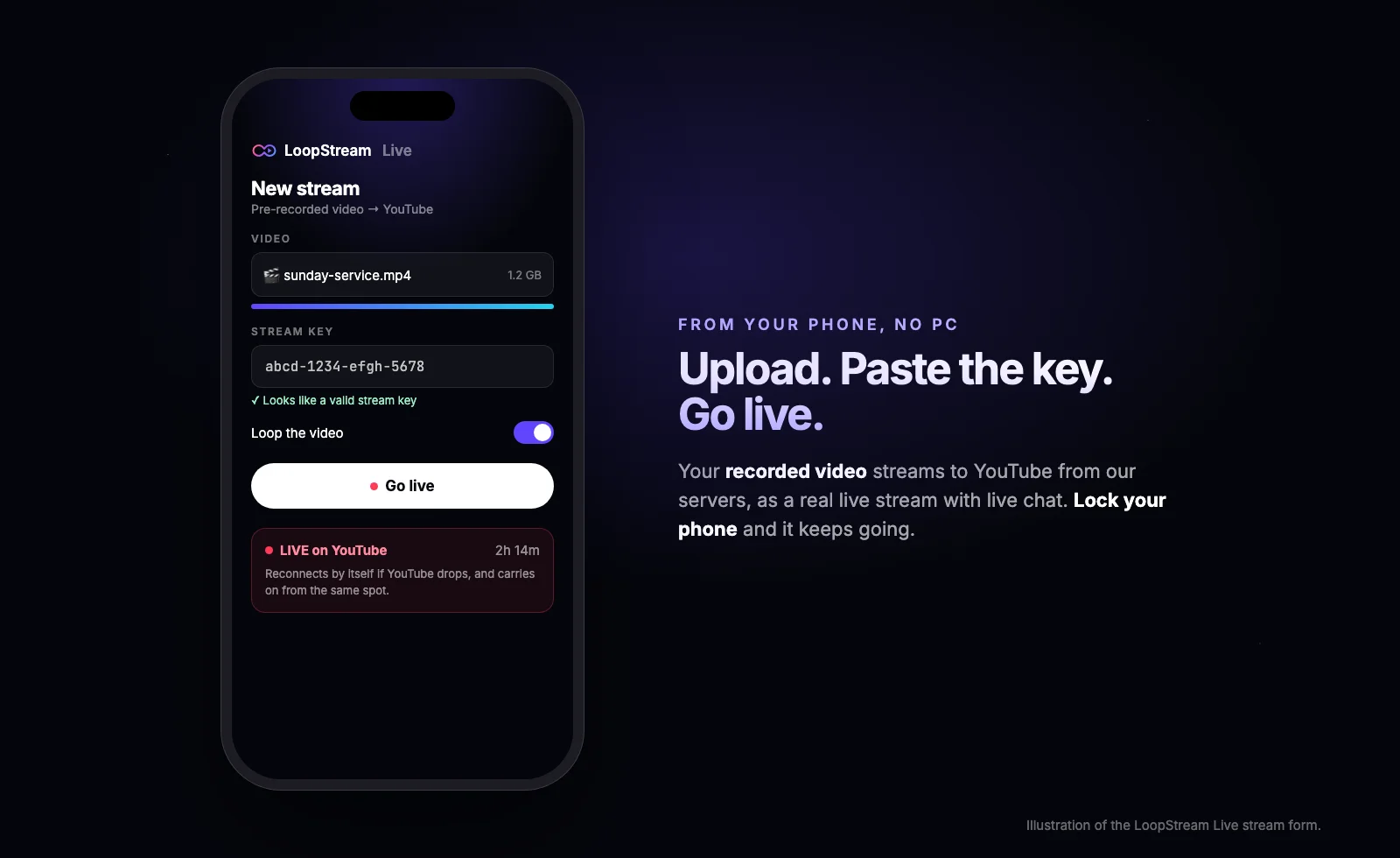
Sign in with Google, tap New stream and upload the video from your gallery, or paste a Google Drive or Dropbox link so nothing has to upload from your phone. Several videos play in order as a playlist.
- 3
Paste the key and choose loop or once
Paste the stream key. Leave Loop on to keep the video playing until you stop it, or turn it off to play it through once.
- 4
Press Go live
Your channel goes live within about a minute. Lock your phone or close the app: like any cloud stream loop app, the stream keeps running from the cloud, and if YouTube drops the connection it reconnects and carries on from the same spot in the video.
To air the recording at a set time instead of right away, schedule it. Create a scheduled stream in YouTube Studio, use its stream key in LoopStream Live and set the same go-live time; our guide on how to schedule a YouTube live stream walks through it. To keep it on air around the clock, see how to loop a video on YouTube Live 24/7.
How to prepare the video before you stream it
- Export as MP4 with H.264 video and AAC audio. Almost every tool and platform accepts it without converting.
- 1080p at 30 fps is plenty for most streams. 720p looks fine on phones and uploads much faster.
- Keep the file small enough to upload comfortably. A long talk or music mix rarely needs more than 2 to 4 GB at 1080p.
- Add a short intro card, so people who join in the first seconds don't miss the start.
- For a loop, fade the end into the start so the restart point isn't jarring.
- Check the audio levels all the way through. Viewers forgive soft picture faster than bad sound.
Can you talk to viewers during a pre-recorded stream?
Yes, and it's one of the best reasons to do it. Because the video plays by itself, you can sit in the live chat from YouTube Studio or the YouTube app, answer questions, pin a comment with links and thank people as they arrive. Some creators record the main content and then stay in the chat for the whole broadcast, which gives viewers the live feeling without the pressure of performing live.
Good uses for a pre-recorded live stream
- Weekly church services, sermons and prayer sessions, streamed at the usual time.
- Lessons, courses and webinars that run the same way every time.
- Music, lofi, radio and relaxing sound channels on a 24/7 loop.
- Replays of a past live event for viewers in other time zones.
- Product launches and trailers, aired at a fixed time with a live chat.
- Gaming highlights and long-form compilations while you're offline.
Pre-recorded stream not working? Check these
- The stream key is wrong or old. Copy it again from the Stream tab; it's groups of four letters and numbers joined by dashes, not your channel name.
- Live streaming isn't on yet. New channels must verify a phone number, and the first activation can take up to 24 hours.
- Auto-start is off. Then YouTube waits in the Live Control Room until you click Go live yourself.
- The video won't play. Re-export it as MP4 (H.264 and AAC). A file that's damaged partway through can stop at the same point every time.
- Another encoder is using the same key. Stop OBS or any other app streaming to that key first.
Frequently asked questions
Can you pre-record a YouTube live stream?
Yes. Record and edit the video first, then send it to YouTube as a live stream with OBS on a computer or with a cloud tool like LoopStream Live. Viewers see a normal live stream with live chat. A YouTube Premiere also shows a recorded video at a set time, but it's labelled Premiere and plays once.
How do I go live on YouTube with a pre-recorded video?
Copy your stream key from YouTube Studio (Create, Go live, Stream tab). Then either add the video as a Media Source in OBS and click Start Streaming, or upload it to a cloud tool, paste the key and press Go live. The cloud way works from a phone and doesn't need your computer on.
Does YouTube allow pre-recorded live streams?
Yes. YouTube accepts a recorded video from any encoder the same way it accepts a camera. The usual rules apply: stream content you own or have rights to, follow the Community Guidelines and don't mislead viewers about what they're watching.
What is the difference between a Premiere and a live stream?
A Premiere plays an uploaded video once at a set time, labelled Premiere, then it becomes a normal video. A live stream is labelled LIVE, appears in the Live tab and can run as long as you like, loop the video or play a playlist.
Can I do a pre-recorded live stream from my phone?
Not with the YouTube app alone, because its Go live button uses the camera and needs 50 subscribers. With a cloud tool you upload the video from your phone, paste your stream key and go live, with any number of subscribers, and your phone can be locked while it streams.
Can people tell a live stream is pre-recorded?
Not from the stream itself. It shows as LIVE with live chat like any other broadcast. Being upfront in the title, for example "recorded" or "replay", is still good practice and avoids misleading viewers.
Can a pre-recorded live stream make money?
Yes, if your channel is in the YouTube Partner Program and the video is your own original content. Ads work on live streams the same as on uploads. Content that mainly reuses other people's videos isn't eligible.
Is it free to live stream a pre-recorded video?
Premieres and OBS are free. LoopStream Live has a free plan with 1 hour of live streaming a day, and weekly passes for longer streams in 1080p, with one payment and no subscription.